Shopify Product Images Not Showing: How to Find and Fix It

When Shopify product images are not showing, the cause is almost always one of five things: a browser problem, a failed or oversized upload, a missing variant image, a theme setting, or an app getting in the way. Check them in that order and you will usually find the culprit in minutes. Re-uploading everything at random is the slow way.
This guide walks through each check in plain words. It also covers the close cousins of this problem: images not loading in descriptions, cart or checkout, variants not showing, and whole products missing from the storefront.
TL;DR
- First rule out your own device: clear the cache, try a private window, another device and another connection.
- Open the product in Shopify admin. If the image shows there but not on the storefront, the problem sits in your theme or an app.
- Keep files under 20 MB and under 5000 x 5000 pixels. Square 2048 x 2048 images usually display best.
- Variant images are one per variant. A variant with no image assigned is the most common reason variants look broken.
- A product that vanishes entirely is usually not Active, or not published to the Online Store sales channel.
Table of Contents
- Start with your own device
- Compare admin and storefront
- Check the upload and the file itself
- If the image link is broken
- When the whole product is not showing
- When variants are not showing
- When images fail in descriptions, the cart or checkout
- Theme, code and app problems
- When to contact support
- Our view: images break quietly
- Let us keep an eye on it
- How other options compare
- FAQ
- Sources
Start with your own device
Before you touch the store, make sure the problem is real for everyone. Shopify’s own troubleshooting page says to rule out a local device, browser or connection issue first. It suggests clearing your browser cache and cookies, trying incognito mode, trying another device or the Shopify app, switching internet connections and updating your browser. It also points to cookie, VPN and firewall settings (Shopify Help Center).
Two terms worth knowing:
- Cache: a saved copy of a page or image that your browser keeps so it loads faster. Sometimes the saved copy is stale or broken.
- Incognito (private) mode: a browser window that ignores your saved copies and cookies. If images appear there, your cache was the problem.
Ask a friend or a customer to open the page on their phone. If they see the images and you do not, stop digging in the store. If they do not see them either, move on.
Compare admin and storefront
This one check splits the problem in half. Open the product in your Shopify admin (the back office where you manage products).
- Image missing in admin too: the upload failed or the file was never attached. Go to the upload section below.
- Image shows in admin, missing on the storefront: the problem is in the theme (the template that controls how your store looks), a CSS rule, an app, or a stale cached copy on Shopify’s image network. A company guide on missing product photos makes the same split and says to look at theme causes when admin shows the image and the storefront does not (Solaya).
While you are in admin, check product-level images and variant-level images separately. They are two different lists, and one can be fine while the other is empty.
Check the upload and the file itself
Shopify explains that when you add media, the file is read, converted to the formats your store needs, then stored. An upload can fail at any of those stages, and the error message in admin tells you which one (Shopify Help Center). Read the error before you do anything else.
File limits that cause silent failures
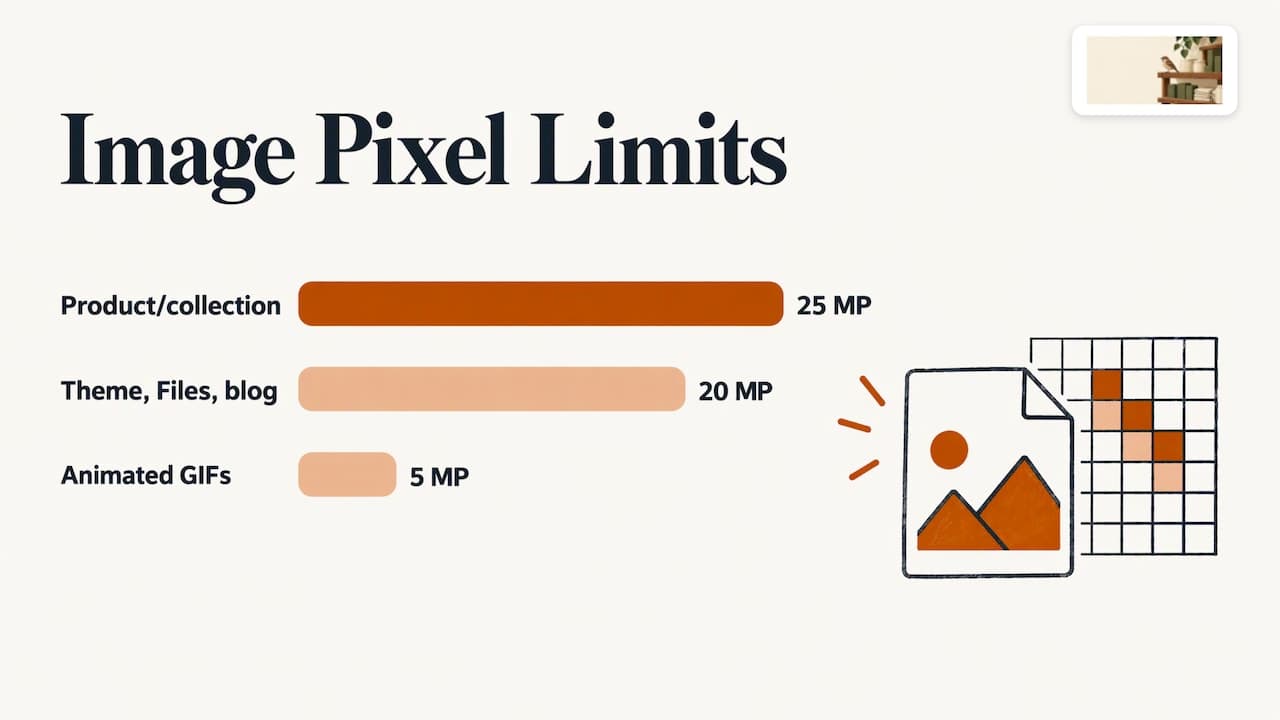
Shopify states that product and collection images can be up to 5000 x 5000 pixels (25 megapixels) and must be smaller than 20 MB. PNG is the best file type for most product images, followed by JPEG, and square 2048 x 2048 images usually display best (Shopify Help Center).
| Check | What to look for |
|---|---|
| File size | Under 20 MB |
| Dimensions | No larger than 5000 x 5000 px |
| Best-looking size | Square, 2048 x 2048 px |
| File type | PNG or JPEG for most products; WebP, HEIC, GIF and others are also accepted |
| Extension | Must match the real format of the file |
A megapixel is simply one million pixels. A 5000 x 5000 image is 25 million pixels, which is where the cap comes from.
One trap: images used outside product pages follow a tighter cap. A Shopify app developer’s guide notes that theme assets, the Files area and blog images are capped at 20 megapixels (roughly 4472 x 4472), and animated GIFs at 5 megapixels. The same guide suggests resizing to 4000 x 4000 pixels to stay safely under both caps, and says a 2048 x 2048 product image at 80% JPG quality is typically under 300 KB (Craftshift).
Other upload checks
Shopify’s media page also advises these steps (Shopify Help Center):
- Confirm the file meets the media requirements above.
- Confirm the file extension matches the actual format. A video renamed from .mov to .mp4 will not work, and the same logic applies to images.
- Check whether the file is already in the Media section.
- Try the same file on a different product. If it works there, the problem is the first product, not the file.
Blurry is not the same as missing
Sometimes images load but look broken. One merchant-focused guide says that for most themes, product images should be at least 2048 x 2048 pixels for clean display at full size on desktop, and that anything under about 800 pixels on the longest side will almost certainly look blurry (Paul Walsh). If you suspect weak photos are costing you sales, our post on why product photos don’t convert goes further.
If the image link is broken
Every image on your store has a web address, called a URL. If the image shows a blank box, the address may be dead.
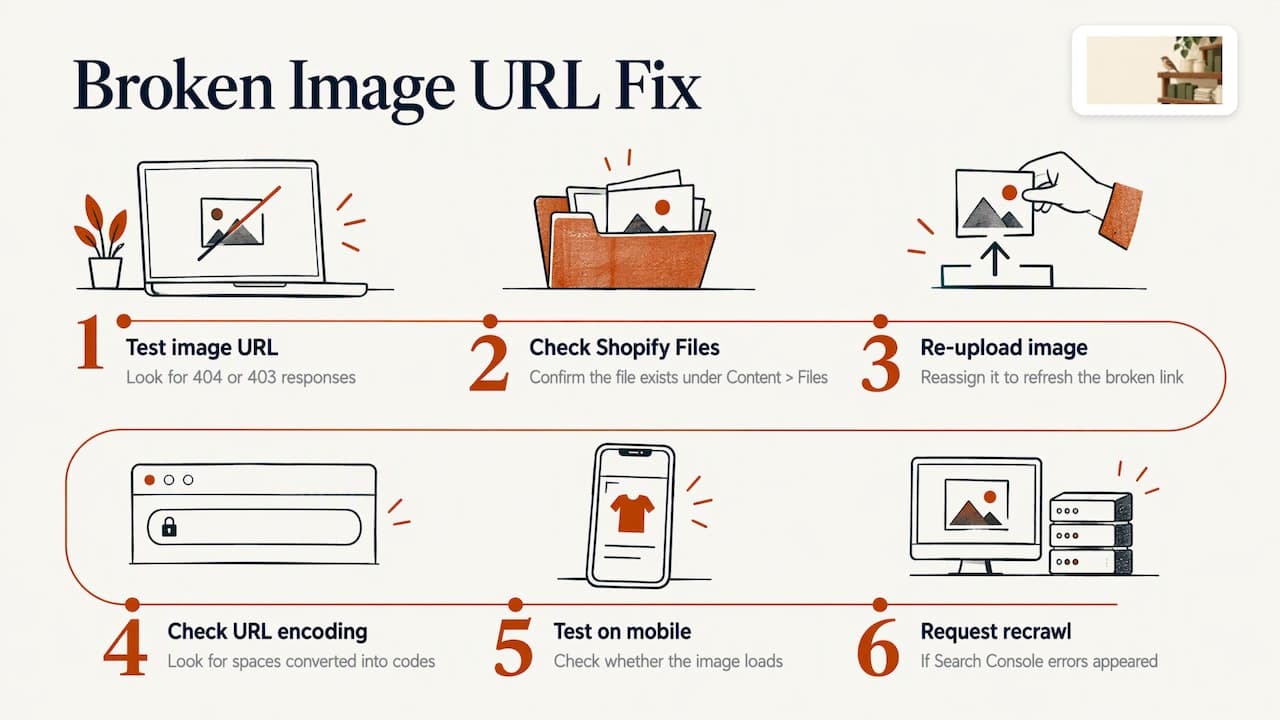
A step-by-step guide from an image-technology company suggests: identify the broken image URL, check whether the file exists under Content > Files, re-upload and reassign the image, check for URL encoding problems (odd characters like spaces turned into codes), test on mobile, and ask Google to recrawl if the errors appeared in Search Console (Cloudinary).
You can also paste the image address straight into a browser tab. The Solaya guide says to look for a 404 (file not found) or 403 (access refused) response (Solaya). If an address starting with cdn.shopify.com does not load, a community answer says it may be a cache or permission issue, and re-uploading the image can refresh the link (Shopify Community).
For a wider check on links that misbehave across your store, see how to check product links that do not load as expected.
When the whole product is not showing
If a product does not appear on the storefront at all, the image is not the issue. Shopify says to review the product’s Status and its Sales Channels in the Publishing section of admin, and to verify the product is Active and available to the Online Store (Shopify Help Center).
- Status: Active means live. Draft and Archived products are hidden.
- Sales channel: a place where you sell, such as your Online Store. If the product is not ticked for the Online Store, shoppers will not see it there.
Also confirm the product is in the collection you expect. A product can be live and still missing from a page because it was never added to that collection. Stock matters for customer experience too: our guide to checking product availability against inventory covers mismatches between what shows and what you hold.
When variants are not showing
A variant is one version of a product, such as a size or color. Variant trouble comes in two flavors, and they have different fixes.
- Options missing: the size or color choices do not appear. This is usually a setup or limit issue.
- Images not updating: the choices appear, but the photo does not change. This is usually a display or configuration issue.
A Shopify community discussion points out that merchants often hunt through theme code for a bug when the real issue is that the variant has no image assigned (Shopify Community).
Fix variant images in four steps
- Open the product in admin and go to the Variants section.
- Click each variant and assign the correct image.
- Check that your theme supports variant image switching (many do, some older ones do not).
- Reload the storefront in a private window and click through every option.
Know the built-in limit: native Shopify allows one image per variant, and choosing a variant shows its assigned image. There is no built-in filter that hides gallery images that do not match. One guide describes a shirt with 8 colors and 4 photos each, where shoppers see all 32 images and only one is tied to the chosen color, and it recommends variant image apps for that case (Craftshift). The simplest rule: if a variant looks wrong, make sure it owns an image.
If you manage products through code and see the error that image IDs do not exist or do not belong to the product, a community answer explains it usually follows cloning a product or deleting the original images. The fix is to remove the image ID from the variants, attach the product images, then update the variants with the new IDs (Shopify Community).
When images fail in descriptions, the cart or checkout
Cart and checkout. Shopify says the first media item on a product is the featured one, shown on collection pages, the cart, checkout and home page, and you can change it any time (Shopify Help Center). If the thumbnail is blank at checkout, put a working image in first position.
A community thread on blank checkout thumbnails lists four causes: the image not linked to the product or variant, a theme code issue in the cart or checkout files, a caching problem fixed by clearing the browser cache, and an app conflict (Shopify Community).
Product descriptions. Images pasted into the description box are separate from product media. A community case traced one such problem to images that were not properly uploaded to Shopify’s Files section, which is needed for them to show across devices. Upload through Files, then insert from there.
Theme, code and app problems
If the storefront is the only place the image is missing, test the theme. Shopify recommends trying another theme and temporarily uninstalling recently installed or updated apps that affect the storefront. If the problem appears on every theme, it may come from admin settings, apps or something else (Shopify Help Center).
Common theme-side causes include:
- A hiding rule in CSS. CSS is the code that controls how things look. A rule such as display: none can hide images entirely. The Solaya guide suggests checking whether the image tag exists in the page HTML, checking the Network tab in your browser’s developer tools for 404 or 403 errors, and looking for hiding rules (Solaya).
- Theme settings changed after an update. Image ratio and crop settings are a frequent culprit, along with mobile-only display quirks and third-party app interference (Paul Walsh).
- Uneven image shapes. Shopify notes that if collection page images do not align, you should give the files the same height-to-width ratio and re-upload them (Shopify Help Center).
If you edit theme code, duplicate the theme first so you have a clean copy to return to.
When to contact support
Shopify says that if the issue is present only on your current theme and on an updated, uncustomized version of that same theme, you may need theme support. If it appears only on your current theme, your customized code may be the cause (Shopify Help Center).
To reach the theme developer, go to Online Store > Themes > Customize, open the three-dot menu next to the theme name and choose Get support, as a community answer on a color-variant slider bug recommends (Shopify Community).
Our view: images break quietly
We built ShelfSparrow around one observation: image problems are rarely dramatic. A photo goes blank after a theme update. A variant loses its picture. A typo sits in a title for weeks. Nobody sees it, because nobody has time to click through every listing every day.
Most store owners fix these things only after a customer mentions them, or after sales dip. By then the leak has been running for a while.
That is why we run ShelfSparrow as a done-for-you service, not software. You do not get another dashboard to learn. We keep a steady eye on your listings, fix routine errors, flag low stock, and send a short daily summary in plain English.
The fix itself is rarely hard. The hard part is noticing. A little order, all day long, is what keeps a shop tidy.
Francis
Let us keep an eye on it
If you would rather not click through every listing yourself, we do it for you. Our store audit costs $297 one time. It covers titles, SEO, typos and broken images, fixed within 72 hours, with a plain-English report that puts the biggest problems first.
After that, ShelfSparrow’s ongoing plan is $29 a month: listing checks, stock alerts and a daily summary. We audit any online store or marketplace, including Shopify, Etsy, Amazon, Walmart, eBay and WooCommerce. See how the Shopify and Etsy listing audit works, or start at ShelfSparrow.
Want a routine to run yourself in the meantime? Our Shopify store maintenance routine and the list of listing mistakes that kill Shopify sales are good places to start.
How other options compare
You have choices when you want listings checked. Here is where each sits, so you can match one to your store’s size.
| Option | What it is | Price |
|---|---|---|
| ShelfSparrow | Done-for-you audit, fixes made on the spot within 72 hours, then monitoring | $297 audit, $29/month |
| Lydia | AI store management for Shopify and Etsy, audits across 9 categories | $497 one-time audit with a report in 48 hours, then $1,997/month |
| Speechify Boost | Audits products and drafts fixes (titles, copy, photos, meta) for you to approve, plus a weekly digest | See their site |
| OptraSeven | Shopify CRO agency (conversion rate optimization: turning more visitors into buyers), aimed at brands doing $200k to $5M a year | Deep audit at $149 as a founding offer, against a $297 regular price |
| Focused Developer | Shopify audit with a report in 5 business days, money back if fewer than 5 fixes are found | €150 |
| Upwork and Fiverr freelancers | Audit freelancers, mostly report-only with no monthly watch | $35 to $1,299 |
| CRO agencies | Full conversion rate optimization work | $1,500 to $3,000 or more |
A few notes on how we differ. Lydia’s ongoing rate is $1,997 a month, while ours is $29 a month, and our audit is $297 against their $497. Speechify Boost works by approval: it drafts, you sign off. We fix issues on the spot. OptraSeven targets larger brands and has no $29-a-month watchdog offering. Prediko, Sellbrite and StoreClaw are also in the space; we are a service that fixes leaks, not a tool you operate.
FAQ
Why are my Shopify product images not showing on the product page?
Start with your browser: clear the cache and test in a private window. Then open the product in admin. If the image is missing there, re-upload it, keeping it under 20 MB and 5000 x 5000 pixels. If it shows in admin but not live, test another theme and disable recent apps.
Why are my Shopify variants not showing images?
Most often the variant has no image assigned. Open the product, go to Variants and attach an image to each one. Shopify allows one image per variant, so also confirm your theme supports switching images when a shopper picks an option.
Why is my Shopify product not showing on the storefront?
Check that its Status is Active and that the Online Store sales channel is ticked in the Publishing section. Then confirm it belongs to the collection you are viewing.
What image size does Shopify recommend?
Shopify says product images can be up to 5000 x 5000 pixels and must be under 20 MB, and that square 2048 x 2048 images usually display best. PNG is best for most product images, followed by JPEG.
When should I ask my theme developer for help?
If the problem shows only on your current theme, and also on a fresh, updated copy of it, go to Customize in your themes, open the three-dot menu and choose Get support.
Sources
- Shopify Help Center: Troubleshooting your online store
- Shopify Help Center: Adding product media
- Shopify Help Center: Product media types
- Cloudinary: Shopify broken images
- Solaya: Fix missing product images
- Paul Walsh: Why your Shopify product images are not showing
- Craftshift: Shopify 25 MP image limit
- Craftshift: Shopify images guide
- Shopify Community: Product thumbnail on checkout page is blank
- Shopify Community: Variant prices not changing
- Shopify Community: Image IDs do not exist
- Shopify Community: Product images not showing up
- Shopify Community: Product image in particular color